SEOquake is a free plugin (Chrome, Firefox, Opera, Edge) that displays key SEO metrics directly in your browser for any page you visit or SERP you view. It bundles tools like SEObar, SERP Overlay, Page SEO Audit, keyword density, and link reports, so you can do quick SEO checks without opening separate SaaS dashboards.
Use it for on-the-fly competitor research, quick technical checks, and fast page-level content reviews on client or in‑house sites.
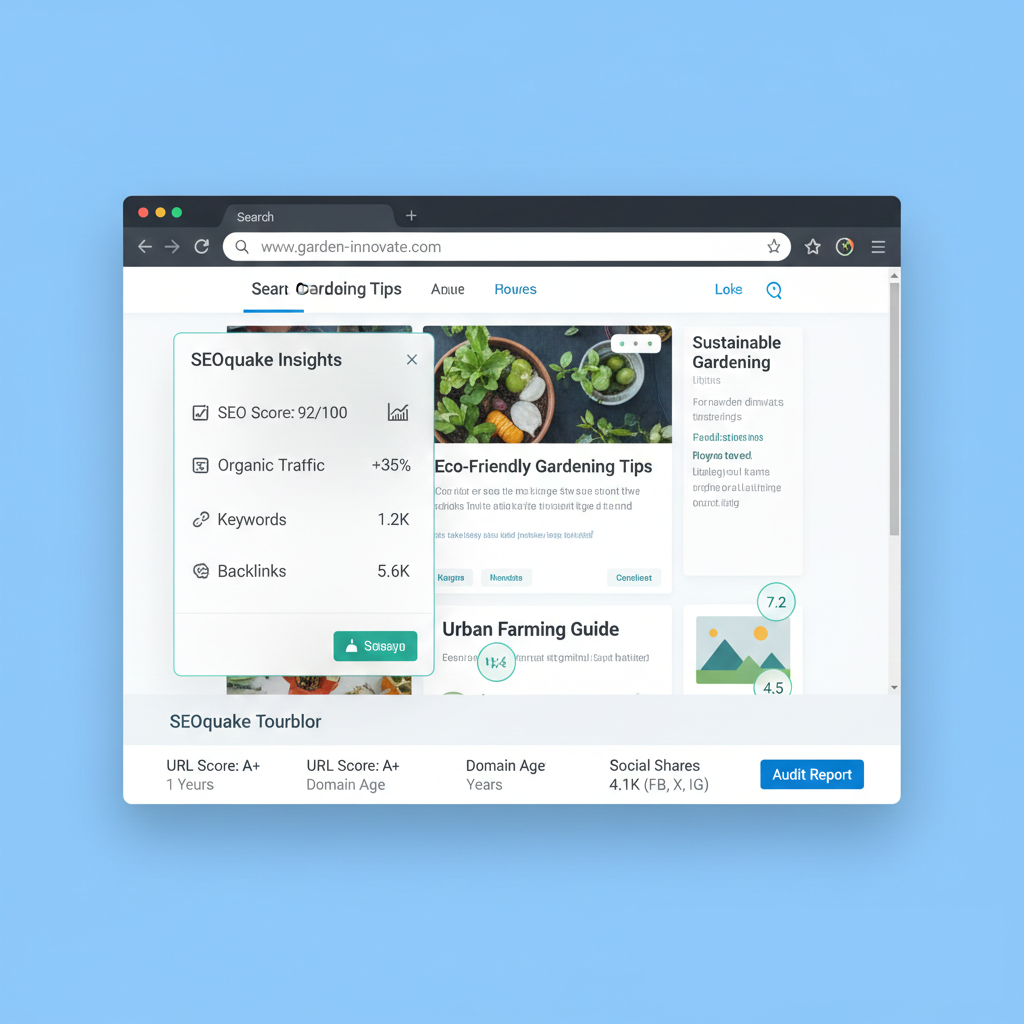
SEObar: Instant On‑Page Metrics at the Top
The SEObar is a horizontal bar that appears at the top of any page you visit and shows crucial metrics like indexation, backlinks, age, and social stats in one compact strip. Once enabled in SEOquake settings via “Show seobar”, it automatically loads for every URL you open, letting you scan page performance without extra clicks.
This is especially useful when reverse‑engineering a strong landing page from a competitor because you can see its numbers as you browse. SEObar also lets you click into deeper reports (like backlinks or Whois) when you need more than a quick snapshot.
SERP Overlay: Research Directly on Search Results
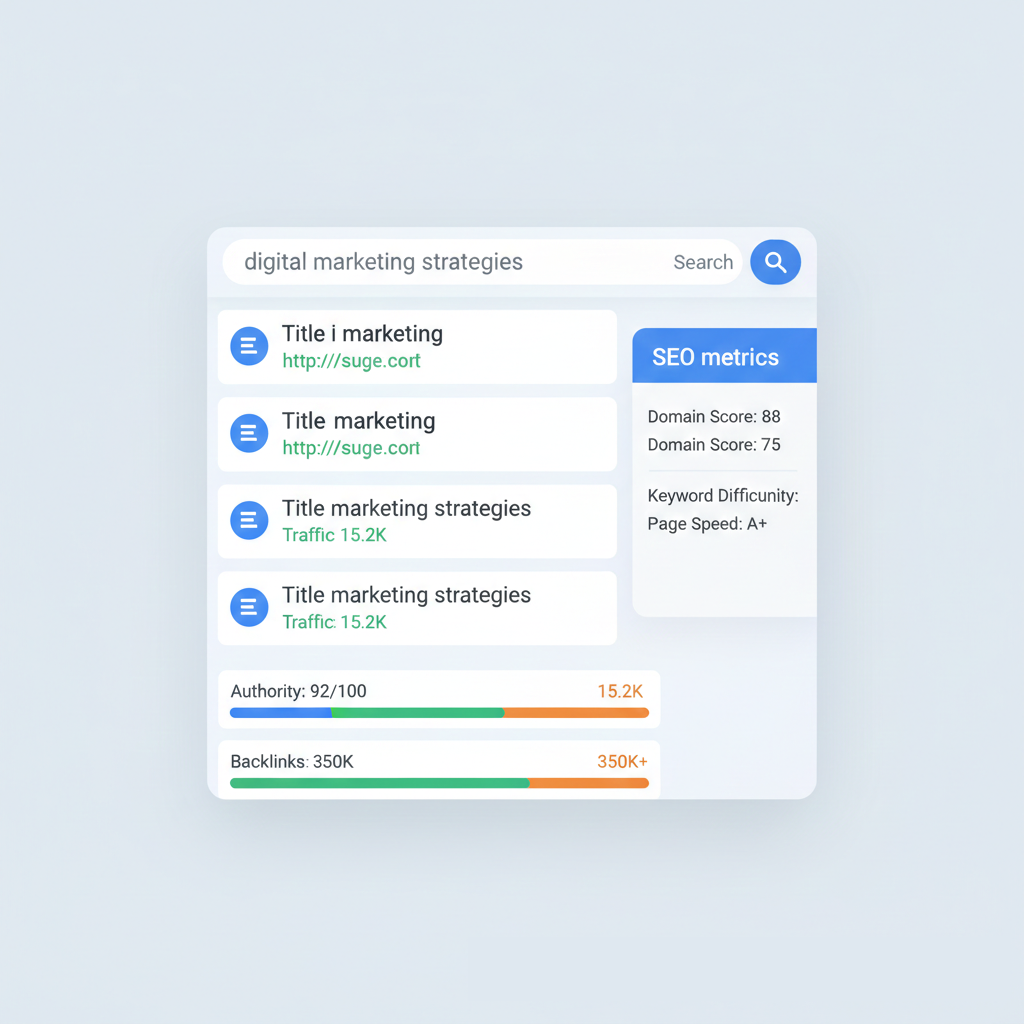
SEOquake’s SERP Overlay adds a metrics row under every organic result when you search in Google or supported engines. Instead of opening each result in a new tab to inspect SEO stats, you see authority, indexation, backlinks, and other metrics right under the title and snippet.
A sidebar lets you sort results by any metric, export the full SERP as CSV, and open a more detailed SERP report in a new tab. This setup speeds up keyword and competitor research, since you can instantly see who really dominates a query and why.
Page SEO Audit: Diagnosis in a Few Clicks
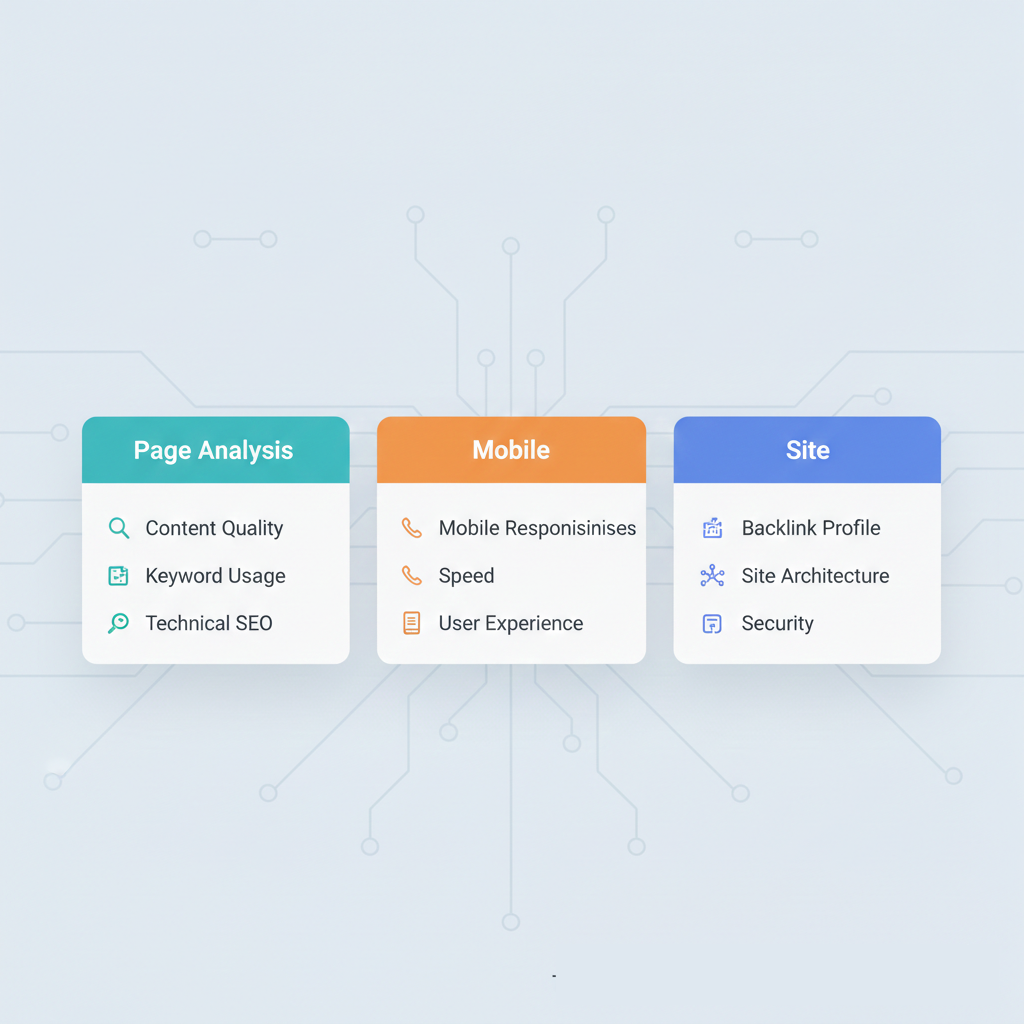
The Page SEO Audit (Diagnosis) feature scans a single URL and flags on‑page and technical issues that can hurt rankings. It groups checks into sections like Page Analysis, Mobile Compliance, and Site Compliance, each with clear pass/fail indicators and short explanations.
For SEOs and content marketers, this acts like a quick “health check” before publishing or updating a page, revealing missing tags, weak markup, or configuration issues.
How to Run an Audit
Running a Page SEO Audit is straightforward.
- Open the landing page you want to test in your browser.
- Click the SEOquake icon in your toolbar.
- Choose the “Diagnosis” tab from the dropdown.
- SEOquake opens a new tab with the full audit report for that URL.
From there you can scroll through issues, expand “Tips” for explanations, and prioritize fixes based on severity and impact.
What the Audit Covers
The audit breaks down into three main areas.
- Page Analysis: Reviews URL length and structure, title tag, meta description, headings, image ALT attributes, and other on‑page elements, with “Tips” links for each check.
- Mobile Compliance: Checks for viewport configuration and AMP support to assess whether the page is mobile‑friendly, with more tests being added over time.
- Site Compliance: Look at site‑wide items like XML sitemap, robots.txt, language declarations, doctype, encoding, microformats, and favicon presence.
Together these sections provide a practical checklist for quick technical cleanup before you move on to deeper audits in more advanced tools.
Keyword Density Report: Content and Keywords at a Glance
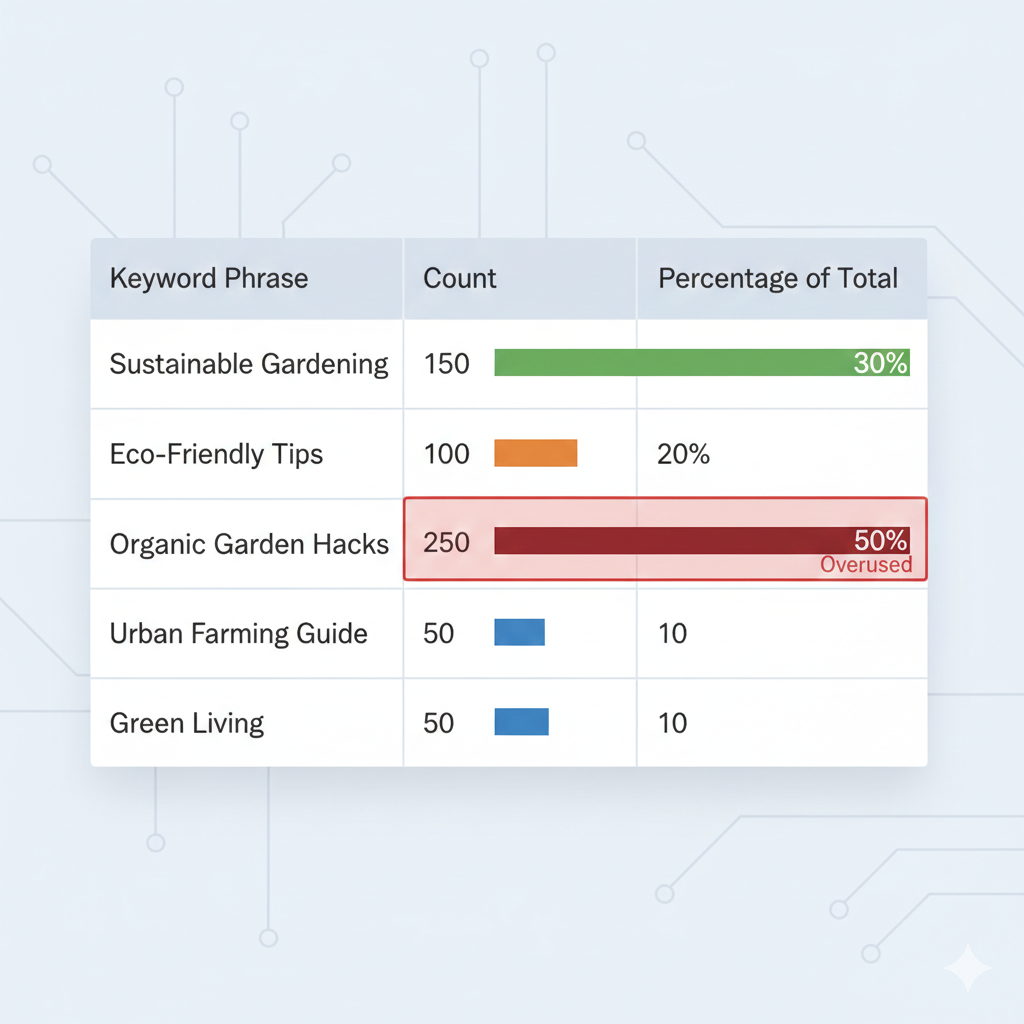
The Keyword Density report lists all terms used on a page, how frequently they appear, and where they occur in the HTML structure. It helps you spot over‑optimized pages, thin content around target keywords, or missed opportunities to include important phrases naturally.
SEOquake also breaks terms into 1‑word, 2‑word, 3‑word, and 4‑word phrases, which makes it easier to see which keyphrases your content is actually optimized around—not just individual words.
Key Features of the Keyword Density Tool
Several features make this report especially actionable.
- Keyword Frequency: Shows each keyword or phrase sorted by how often it appears on the page.
- Found In: Indicates if a term appears in the title tag, meta description, headings, or body, with icons you can hover for details.
- Keyword Breakdown: Visualizes 1‑, 2‑, 3‑, and 4‑word phrases separately, helping you differentiate between general words and real search phrases.
- Density & Prominence: Calculates the share of each keyword in total word count and how prominent it is (e.g., in headings vs. body).
- Page Info Box: Shows page title, meta keywords (if present), and meta description in one compact area.
Use this report to refine content so it remains relevant without triggering keyword stuffing signals.
Internal & External Links Report: Link Structure Snapshot
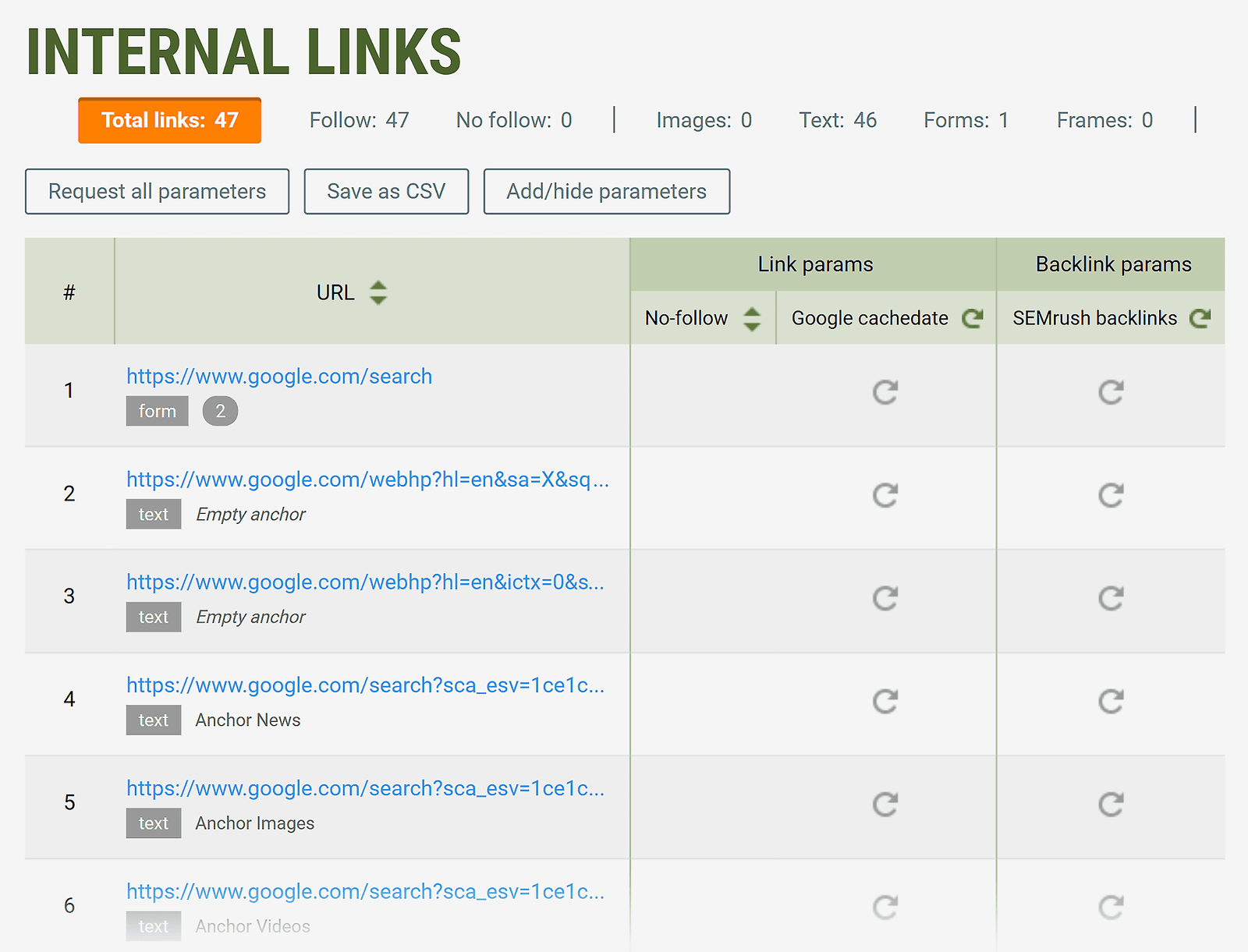
SEOquake includes link analysis that shows both internal and external links from the page you are analyzing. This overview reveals how your page passes authority internally and what kind of outbound references you are making to other sites.
It is useful for checking whether a key page is siloed correctly, or whether you are leaking authority through excessive or low‑quality external links.
Internal Links Report
The internal links report focuses solely on links pointing to other pages within the same domain or site. It typically lists link targets and anchor texts, so you can see if you are using descriptive anchors and covering all relevant internal destinations.
You can quickly identify orphan‑like behavior (few internal links), excessive repetition of the same anchor, or missing links to important money pages and pillar content. Adjusting your internal linking strategy after this analysis can improve crawlability and topical authority signals.
External Links Report
The external links report shows outbound links from the page to other domains. It helps assess whether you are citing authoritative sources, linking to potential competitors, or sending users to low‑quality or irrelevant sites.
By scanning this list, you can prune unnecessary links, ensure you are using proper rel attributes where needed, and maintain a healthy balance between internal and external linking. This is particularly useful for affiliate and review pages, where outbound link quality and quantity matter.
Compare URLs & Domains: Side‑by‑Side SEO Benchmarking
The Compare URLs/Domains tool lets you input multiple URLs or domains and generate a side‑by‑side metrics report. You can compare many pages at once, not just a small set—SEOquake supports comparing up to about 15 URLs simultaneously in one report.
The comparison can cover metrics like index status, backlinks, and other SEO parameters depending on configuration, helping you see which pages or competitors are strongest along different dimensions.
How It Works
Using the comparison feature is simple.
- Open SEOquake and go to the Compare URLs/Domains section.
- Enter the URLs or domains you want to compare into the input fields.
- Click “Process URLs” to run the report.
- SEOquake displays a table with each URL and its metrics; you can export this data as a CSV for deeper analysis.
This workflow is ideal for checking how your product page stacks up against competitors, or for auditing a set of landing pages within your own site.
How SEOquake Works Behind the Scenes
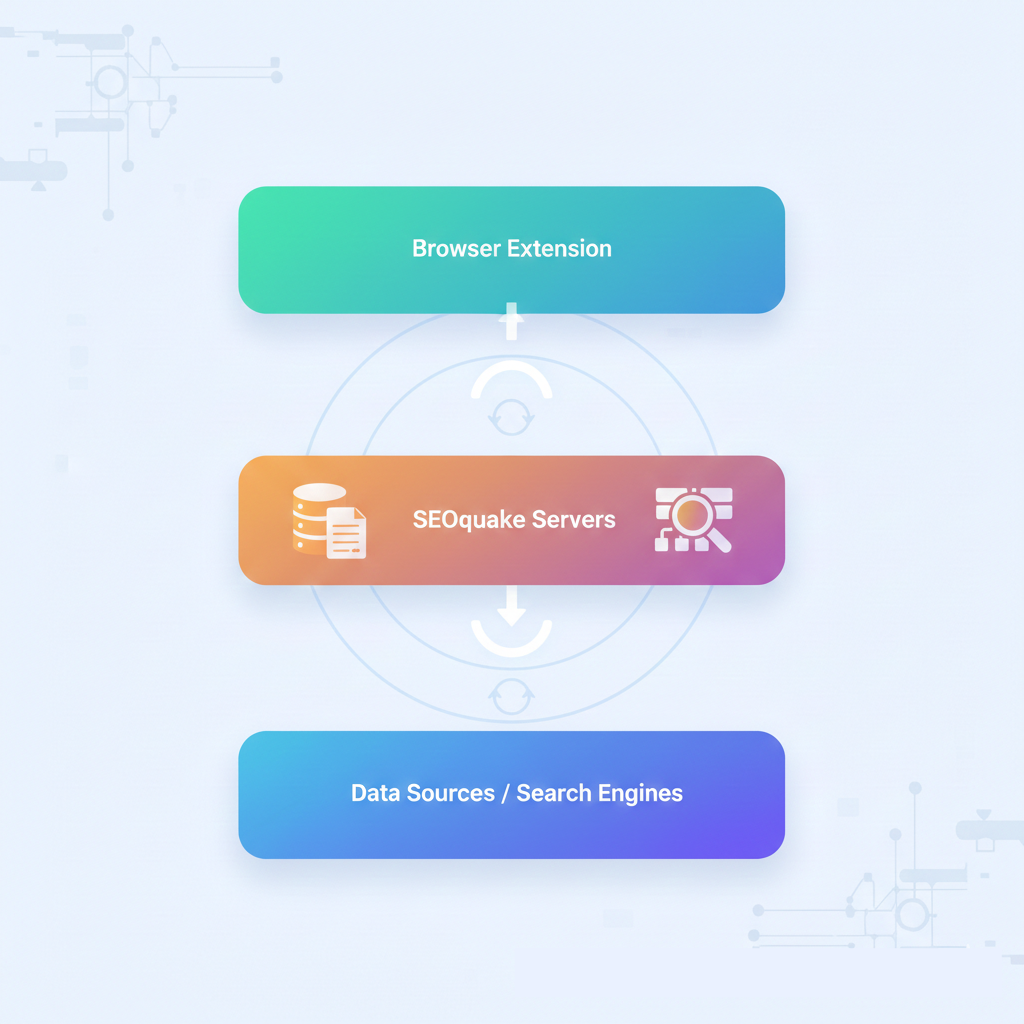
At a high level, SEOquake acts as a browser interface that pulls metrics from external data providers and its own backend when you request them. When SEObar, SERP Overlay, or reports are active, it sends queries in the background to fetch data like index counts, link numbers, and technical checks, then renders them within your browser in real time.
You can customize which parameters are shown via the Parameters settings, turning off metrics you do not use to reduce noise and speed up loading. Many reports and SERP overlays also support CSV export, which simply packages the retrieved data into a downloadable file so you can process it in spreadsheets or BI tools.
Practical Tips to Get the Most from SEOquake
To finish, here are a few practical ways to bake SEOquake into your workflow.
- Use SEObar when prospecting competitors’ landing pages to decide which pages deserve a deeper audit in full SEO suites.
- Keep SERP Overlay on when researching keywords so you can immediately see which domains dominate the first page and export their data.
- Run Page SEO Audit on new or updated pages as a pre‑launch checklist for tags, mobile settings, and site‑wide compliance.
- Check Keyword Density and link reports when refreshing content to balance keyword usage and strengthen internal links.
- Use Compare URLs/Domains to benchmark your pages against top competitors before prioritizing major optimization efforts.